Showing posts with label Facebook. Show all posts

Thursday, 20 February 2014

Add floating social media sharing buttons below Blogger post titles

It is becoming increasingly important to make our posts appreciated and shared on social networks and one of the best ways to get traffic to our blog/website and boost sharing stats is to add social sharing buttons.

In this tutorial we will see how to add a floating social media sharing bar below the title of Blogger posts, so when a reader scrolls down the page, he will still be able to see the sharing buttons without having to scroll back to the top.
Adding the below jQuery script will make the buttons float in a fixed position as soon as they reach "the top" of the page. By scrolling back, the buttons will return to their initial position.

The social sharing bar includes buttons for Facebook, Twitter, Google+, and Pinterest.

Social Media Sharing Buttons below Blogger Post Title


Step 1. From the Blogger Dashboard, go to Template and click on the Edit HTML button:
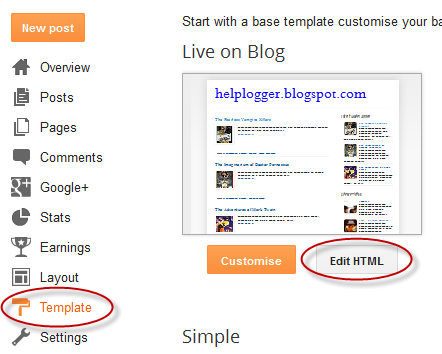

Step 2. Click anywhere inside the code area and press the CTRL + F keys to open the search box. Type the </head> tag inside the search box and hit Enter to find it.

blogger search box, ctrl + f

Step 3. Just above </head> add this script:
<script src='http://ajax.googleapis.com/ajax/libs/jquery/1.7.1/jquery.min.js' type='text/javascript'/>

<script type='text/javascript'>
//<![CDATA[
$(function() {
var $movesbuttons = $("#floating-social-buttons"),
$window = $(window),
offset = $movesbuttons.offset();
$window.scroll(function() {
if ($window.scrollTop() > offset.top) {
$movesbuttons.css({'position' : 'fixed', 'width' : '550px', 'top' : '0px'});
} else {
$movesbuttons.css({'position' : 'absolute', 'top' : 'auto'});
}
});
});
//]]>
</script>
Step 4. Now before ]]></b:skin> add the following CSS styles:
#floating-social-buttons {
padding: 6px 0px 12px;
position: absolute;
background: #F6F6F6;
border-bottom: 1px solid #DEDEDE;
width: 550px;
height: 18px;
z-index: 99;
}
.floating-social-buttons {
margin-left: 5px !important;
}
.floating-social-buttons li {
float: left;
margin-left: 5px;
list-style:none;
}
To change the width of the bar, modify the 550px values in red. Note that this value also appears in the script which also needs to be modified.

Step 5. Finally, just below the second <div class='post-header'> (press CTRL + F and hit Enter twice to find the second one) add the following code:
<b:if cond='data:blog.pageType == &quot;item&quot;'>
<div style='padding:5px 0 35px 0;clear:both;'>
<div id='floating-social-buttons'>
<ul class='floating-social-buttons'>

<li><iframe allowTransparency='true' expr:src='&quot;http://www.facebook.com/plugins/like.php?href=&quot; + data:post.url+ &quot;&amp;layout=button_count&amp;show_faces=false&amp;width=100&amp;height=25&amp;action=like&amp;font=tahoma&amp;colorscheme=light&quot;' frameborder='0' scrolling='no' style='border:none; overflow:hidden; width:100px; height:25px;'/></li>

<li><a class='twitter-share-button' data-lang='en' href='https://twitter.com/share'>Tweet</a><script src='//platform.twitter.com/widgets.js' type='text/javascript'/></li>

<li><script src='http://apis.google.com/js/plusone.js' type='text/javascript'/><g:plusone expr:href='data:post.url' size='medium'/></li>

<li><a class='pin-it-button' count-layout='horizontal' expr:href='&quot;http://pinterest.com/pin/create/button/?url=&quot; + data:post.url + &quot;&amp;media=&quot; + data:post.thumbnailUrl + &quot;&amp;description=&quot; + data:post.snippet' style='margin:0 10px 5px 0;'>Pin It</a> <script src='http://assets.pinterest.com/js/pinit.js' type='text/javascript'/></li>

</ul>
</div>
</div>
</b:if>
Customization:

If you want the buttons appear at the end of the post, paste this code before or after <div class='post-footer'>
If the bar overlaps with the post content, then change 35px to a higher value.

Step 6. Click on the Save template button... and that's it!

So these were the steps for adding the horizontal social buttons bar on Blogger. I highly recommend using this bar as it could really help you to get more social traffic for your blog.

Monday, 27 May 2013

How To Add Social Media Icons to Blogger Header

social media icons, facebook icons, social media icons for bloggerThis tutorial will help you to add social media icons in the top right corner of the page which could increases the likelihood that readers can follow through the various social networks. There are several ways to do this, like adding a new widget section to the blog header but now, we'll do it using an unordered list that uses icons of Facebook, Twitter, Google+ and blog feed, and as a bonus, the icons will rotate when you hover over them.

You can see a demo in this test blog.


Adding Social Media Icons to Blogger Header

Step 1. From your Blogger dashboard, go to Template and click on the Edit HTML button:

blogger blogspot, blogger template, blogger gadgets

Step 2. To expand the style, click on the small arrow on the left of <b:skin>...</b:skin> (screenshot 1), then click anywhere inside the code area to search (using CTRL + F) for the ]]></b:skin> tag (screenshot 2) and add this code just above it:

 /* Social icons for Blogger
----------------------------------------------- */

#social-icons {
margin-bottom:-30px;
height:50px;
width:100%;
clear:both;
z-index: 2;
position: relative;
}
.social-media-icons {
display:table
}
.social-media-icons ul {
text-align:right;
padding:5px 5px 0 0
list-style-image:none;
list-style-position:outside;
list-style-type:none;
}
.social-media-icons ul {
margin-bottom:0;
padding:0;
float:right;
}
.social-media-icons li.media_icon {
margin-left:6px;
padding-left:0 !important;
background:none !important;
display:inline;
float:left;
}
.social-media-icons li:hover {
-moz-transform: rotate(360deg);
-webkit-transform: rotate(360deg);
-o-transform: rotate(360deg);
transform: rotate(-360deg);
-moz-transition: all 0.5s ease-in-out;
-webkit-transition: all 0.5s ease-in-out;
-o-transition: all 0.5s ease-in-out;
-ms-transition: all 0.5s ease-in-out;
transition: all 0.5s ease-in-out;
}

Screenshot 1:


Screenshot 2:


Step 3. Now search for this line

<b:section class='header' id='header' maxwidgets='1' showaddelement='no'>

Step 4. And just above it, add this code:

<div class='social-media-icons' id='social-icons'>
<ul>

<li class='media_icon'><a href='http://facebook.com/username'><img border='0' src='https://blogger.googleusercontent.com/img/b/R29vZ2xl/AVvXsEj9xEhqLvz4wVYA8j3ndZgnV1YK8VhuFSZVAA0_r4bdA8rJYn5izevJONkQZh24GeoU8sotxFQdS-fs4O4wTudpHxFjTBMwwGN-U8wrpJwdB98kbXTGSFqFykcjbPUNqJg4nvIJuCyxhx8/s1600/Facebook.png'/></a></li>

<li class='media_icon'><a href='http://twitter.com/#!/username'><img border='0' src='https://blogger.googleusercontent.com/img/b/R29vZ2xl/AVvXsEilkJw2Qn_zjZZUmd_OiFdlObwaoy-JYLOSpm7Xb9hMYFCPiyE87BU5owd4JWsc33vsTrxuoWcogvTX-e0tcle0fYwovm7jMWPvAEpjieGRvUo3HnhXA1F81V4lBehRd84oEA9ZeshNxLk/s1600/Twitter.png'/></a></li>

<li class='media_icon'><a href='https://plus.google.com/XXXXXXXXXXXXXXXXXX/about'><img border='0' src='https://blogger.googleusercontent.com/img/b/R29vZ2xl/AVvXsEh31VYi5dDvm3j1szCTpwLwWxCi6ilNZNcdXt3n3by8ILhcTabhZy2vMe9aYgPgiZhWjlRfzJhjnlrJxFAOpze4HguVBsAxCHoScIjIby4MBLJPTUGr5yiA7Si8nqBw8POZeJmbCYATlR8/s1600/googleplus.png'/></a></li>

<li class='media_icon'><a href='http://name-of-your-blog.com/feeds/posts/default'><img border='0' src='https://blogger.googleusercontent.com/img/b/R29vZ2xl/AVvXsEhrbNINofEqp9OtojABoxh-OX4RzJ_DKc8pAGn32nJfrbrwxPZ5Id3dk-Dp-3cYHUCi1osvUcrW7u9ZxoHa3aiYyB9yJeDwjIrvHRU1Q42lA9eAJFuIqLFdYoUHAhV2d-_5cCLdwn3zgsM/s1600/RSS.png'/></a></li>

</ul></div>

Customization

- Change what's in red with your usernames and id: the first is your Facebook username, the second is that of Twitter, in the third you should change the X by the ID of your Google+ profile and in the fourth you will put the name of your blog.
- To change the icons, just replace the urls in blue with the ones of your images.
- You can add more icons if you want, you just have to add before </ul></div> a line like this for each extra icon you want:

<li class='media_icon'><a href='Link URL'><img border='0' src='Image URL'/></a></li>

Step 5. Finally, Save the Template to apply the changes.
The effect is done with CSS3, so this effect will not work in older browsers.

Monday, 23 April 2012

Top Websites To Get free facbook Likes -Twitter followers-Youtube views


I think eveybody related to web world want to earn big money in less time But they can't do it often it happens in movies or serial but in real life ,I think not possible.Well if you want earn money through web world then you will have to hard work with consistent.I know there is no shortcuts in blogging and internet marketting But you havechance to increase facebook likes,twitter followers,youtube views and even websites views.
So we have few websites which help you to get more social traffic and based on mutualy exchange that mean you like other websites and they like your website.So lets start now.
Top Websites To Get free facbook Likes -Twitter followers-Youtube views

Now here is a list of Top websites to increase social traffic easily and free

1.Youlikehits.com
I think no doubt that youlikehits.com is best website for networking and having huge fans with facebook like,twitter followers,youtube views and Google +.Also alexa rank is 1510.Although they will ask you for every account in which you want to get likes,followers and etc.they will provide you 100 points at signup and daily 50 bonus point for login regularly.
Signup process is very simple and get account activate in 24 hours.
2.Addmefast.com
One of the best website to get free social traffic.Now having alexa rank 6016 and boosting i.e traffic is increasing day by day.Best thing for this site is signup process is very simple and will got 100 bonus point and also gives you 100 bonus point daily if you are regular.You can also earn simple refferal system.In this site you have to likes,follow or view websites for earn the points and use your point as you promote your project.
3.Twiends.com
Twiends.com is not like other sites.it provides only twitter followers very fastly.If you want real twitter followers then this is best website for you.But you must have a twitter account atleast 30 followers.Just signup and get your account activated and once done ,you can a huge no. of followes.
4. Getlikeseasy.com
This website can be used only for facebook likes and You will get quality likes not spammy.Now a days it has more popularity in likes.And  they have other websites for twitter Exchangefollows.comand google+ Getplusoneeasy.com  Which are Aslo good sites.
5. Swapes.com
Swapes.com is another way to get more social traffic and also based on exchange System.The best thing about them i.e they will give you 1000 Bonus points If you create a videos about them and upload it.And you can earn by write about them for 200 points on other sites.

Thursday, 12 April 2012

9 Types Of Facebook Status Updates That Your Friends Will Like

Facebook has, without a doubt, become the most popular social network in the world. While I’m cheering on Google + just like lots of you are, I don’t think I’ll ever quit checking on the Facebook status updates of my family and friends – at least, not unless they leave Facebook in droves. That’s not likely to happen anytime soon.
One thing that I’ve noticed when I talk to friends that initially start using Facebook is that “nobody comments on my wall.”  Sometimes, I’ll even try to help them out by letting them show me their Facebook wall and trying to help them understand what they’re doing wrong, and why people may not feel encouraged to comment on their status updates.
Facebook Status Updates
Sometimes, it’s just a matter of reciprocating. People expect that friends and family will flock to their wall after every status update.
The truth is that most people only check out your wall when you’ve commented in theirs – so if you never comment on anyone’s wall, how can you expect them to remember to comment on yours?
Beyond that though, I have noticed through the years that there really are certain types of Facebook status updates that do particularly well in gathering comments. These are the polar opposite of the sort of things Craig listed as annoying Facebook updates. I think these really boil down to human nature – people are inspired to respond to certain types of comments, and these status updates seem to encourage that


9 Facebook Status Updates That Encourage Conversation

In this article, I’m going to review 9 updates that almost always spark conversation on my Facebook wall.
I don’t always want to encourage a conversation. Sometimes I’m just posting an update so that my family knows what’s up in my life. Other times, I really am seeking out input or a lively conversation. In those situations, I’ll usually turn to one of these.

Offer Juicy Inside News

I would say one of the most popular status updates where you’ll usually get instant reactions are those where you offer “breaking news” that people won’t find anywhere else. This may be something that you personally experienced that has hit the mainstream news, or just something really unique or surprising that happened to you that would shock people.
facebook status updates
I’ve seen people post, “Great, just got in a car accident” – which is sort of a backwards thing to do in the case of an accident. You would think a person would want to first call a tow-truck or their family. Then again, I once had a near-miss where a car behind me collided into an oncoming truck during a snowstorm, and the first thing I did after pulling over to the side of the road (after calling 9-11 of course), was to post on Facebook about it. So who am I to throw stones?

Make Fun of Weird People

Another type of post that I’ve noticed almost always draws sarcastic comments or witty little replies is whenever I make fun of silly people. This could be a response to a news story or even a response to some weirdo that has emailed me to ask me whether I want to write a story about space aliens landing in their back yard.
facebook updates
I know that it’s not nice to make fun of people, but my Facebook profile is private – and it’s all in jest. Sometimes, when you observe something utterly stupid that someone has done or said in a news story, it’s nearly impossible not to point out that stupidity in a Facebook update.  What I’ve noticed is that people find such posts nearly irresistible to respond to.

Ask for Advice

Another way to draw in the comments is to ask for advice. Even people who wouldn’t normally post much on Facebook in response to wall posts find it nearly impossible not to offer their own advice if someone is asking for it. I’ve asked for some pretty simple tips, like what sorts of food help to stop hunger longer or how people are able to get themselves out of bed early in the morning.
facebook updates
You may actually be surprised at some of the interesting insight that you’ll get from people too. You can look at Facebook as a resource of people that are just going through the same trials and tribulations of life as you. If you’re having difficulties, there’s a pretty good possibility that someone out there has gone through what you’re going through. So, ask for advice! Trust me, you’ll get it.

Ask People What They Think of Movies, Shows or Books

I’ve been in a situation where I’m sitting at a lunch table with a group of people and no one is talking. You ask the group what they thought about a certain movie, and suddenly everyone is bursting to share their opinion. The same happens on Facebook. If you ask your family and friends whether they’ve seen a certain TV show or movie and what they thought about it, you’re nearly guaranteed to get some responses.
facebook updates
Not to mention, you may get some pretty good tips on what to see at the movies this weekend!

Discuss a Cause People Feel Strongly About

People love a cause. I think most people like to feel like they are on the side of the “good guy” – on the side of justice and ethics. This is especially true when there’s a major news event that has people talking about morality – maybe a news article about child abuse, domestic violence or bullying. These are emotionally charged topics that are going to trigger some of the most amazing posts to your wall from people you know.
best facebook status updates
They can also lead to debate – so tread carefully and be diplomatic.

Make Fun of Your Shortcomings

Every one of my Facebook friends knows that I’m a game addict, I can be absent-minded when I’m extremely busy, and I am easily distracted from my work.
These are the things that I struggle with, and everyone has such struggles. When you make fun of your own struggles in a comical way – it gets people talking. Often they’ll share how they’ve failed in much the same way.
best facebook status updates
Not only does it make for really funny conversation, but it’s a nice way to get support from friends and family with the areas in your life where you find that you stumble often.

People Love Quotes

Quotes can go either way. Sometimes I see someone posting a really cheesy quote, and I just roll my eyes and move on. On the other hand, some people have a knack for finding some really cool, really unique and inspiring quotes.
I like to think I’m one of those people – but really, you know you’ve found a good quote if it’s one that you’ve never seen before and really moves you. Or, better yet, come up with a really inspiring quote on your own.
best facebook status updates
There’s nothing to say that you have to quote someone else – why not show everyone just how filled with wisdom you really are and put together your own quote?

Strange, Random Questions

I’ve seen people get carried away with trying to be cool and edgy by constantly posting really strange updates where very few people have any idea what they’re talking about. Guess what – if you have an inside joke with a few select friends, you’re only going to get a response from those few friends. Want to include everyone? Post a random question that implies there’s more of a story to come if they reply.
For example, we recently heard news that there were robbers in the neighborhood, so I immediately posted a single line asking where you can buy pepper spray.
facebook status updates
After a few people responded almost immediately, I explained why I needed it. Don’t do this too often because after a while your friends will just find it annoying and will stop answering. However, dished out every now and again to spice up your wall with random weirdness is a good thing.

Religion & Politics

Are you a glutton for punishment? If you are, then I dare you to post anything on your wall about religion or politics. I made the mistake of doing it once and my Facebook wall immediately became the platform for a very fiery religious debate between an avid atheist and an avid religious person.
So, why am I suggesting it? Because, it is without a doubt one of the fool-proof ways to instigate posts on your Facebook wall. If you’re the type of person that loves debates, then go for it. If you would rather everyone play nice and stay happy, then you’ll want to stick to one of my other suggestions above.
facebook status updates
No matter how many or how few friends you have on Facebook, you shouldn’t have any problem getting them to post something on your wall if you try a few of the tips I’ve suggested above – and don’t forget, if you want people posting on your wall, you really need to spend some time posting on theirs. That’s just what makes social networks work.
Do you have any other tips for how to inspire conversation and discussion on your FB wall? Share your own advice and insight in the comments section below.

Credit:Ryan Dube 
source:Here

Wednesday, 4 April 2012

Want to Be Hired By facebook

Now a day Facebook is on Hiring developer have well Qualification In Information Technology.But Most of us want to be hired but don't know.So now I'm going to show you how to Apply for facebook in easy way.

Want to be hired by facebook

You must have Higher Degree or Diploma for Participate In facebook Program.For participate You must follow these steps.

1. go to facebook.com and find carrers option at the bottom of the page.
hiring for facebook

2. Then click on careers and find developer qualification related to you.and then click on your choice for Apply as a developer.

facebook hiring

3. after selecting your related choice it will ask you for Location of course and then choose and In next Page you will see your bridge for facebook.

hiring for facebook

Now apply and Ok.Don't forget Like facebook pages.