Home
Posts filed under Eclipse
Showing posts with label Eclipse. Show all posts
Tuesday, 12 June 2012
Java, Mengetahui Ukuran Suatu File
Jika kamu ingin mengetahui ukuran file dalam byte, berikut caranya :

Nah, coba jalankan programnya, outputnya :
Ukuran file : 0 Bytes, karena filenya baru dibuat, sehingga belum ada isi
Sekarang kita isi filenya dengan teks :

nah, sekarang coba compile lagi, ukurannya sudah bertambah :

Nah, coba jalankan programnya, outputnya :
Ukuran file : 0 Bytes, karena filenya baru dibuat, sehingga belum ada isi
Sekarang kita isi filenya dengan teks :
nah, sekarang coba compile lagi, ukurannya sudah bertambah :
Membuat Folder Menggunakan Aplikasi Java
sekarang kita akan mempelajari cara membuat folder di Java :
1. Buka eclipse, siapkan project nya
2. Membuat folder pada Java tidaklah sulit, berikut caranya :

Fungsi “mkdir()” berguna untuk membuat direktori/folder pada lokasi file java, sekarang coba jalankan program dan cek lokasinya :

Maka foldernya akan muncul
Kita dapat menyelipkan codingan tadi ke dalam fungsi sehingga fungsi tersebut bisa kita taruh di try-catch saat folder tidak ketemu
==========================================================================
1. Buka eclipse, siapkan project nya
2. Membuat folder pada Java tidaklah sulit, berikut caranya :
Fungsi “mkdir()” berguna untuk membuat direktori/folder pada lokasi file java, sekarang coba jalankan program dan cek lokasinya :
Maka foldernya akan muncul
Kita dapat menyelipkan codingan tadi ke dalam fungsi sehingga fungsi tersebut bisa kita taruh di try-catch saat folder tidak ketemu
==========================================================================
Wednesday, 6 June 2012
Tutorial Cara Instal Glassfish, Jersey, Eclipse WTP Untuk Membuat Web API
Nampaknya, saya mesti kembali ke lingkungan J2EE sementara ini. Mungkin untuk menengok-nengok barang sebentar. Terakhir kali saya lewat lingkungan J2EE, saya masih bingung dengan Spring dan Struts 2. Kali ini saya datang kembali dengan niat yang berbeda. Kali ini saya mencoba membangun Web API server dengan J2EE, sesuai request dari boss. Sebenarnya saya sudah mengembangkan Web API dengan CodeIgniter untuk kebutuhan pribadi, dan selama ini masih berjalan dengan baik. Tetapi untuk kebutuhan kantor, boss menyarankan menggunakan Java supaya servernya bisa scallable. Saya masih awam dengan konsep ini, tapi kita coba dulu lah.
Berdasarkan beberapa sumber, untuk mengembangkan Web API dengan Java, ada beberapa pilihan framework seperti RESTlet, Grails atau Jersey. Setelah ditimbang-timbang, saya putuskan untuk mencoba dulu menggunakan Jersey, karena RESTlet dibilang bloated (padahal seharusnya lightweight) dan Grails dibilang buggy (tapi ada yg berpendapat bahwa layer yang dibawahnya yang buggy).
1. Installasi Application Server GlassFish
- Download GlassFish server 3.1.1 dari http://download.java.net/glassfish/3.1.1/release/glassfish-3.1.1-windows.exe. Tentunya dependency-nya harus dipenuhi, yaitu JDK dan Ant (optional)
- Double click
- Installation type, pilih Typical installation
- Pilih install directory, saya letakkan di D:\glassfish3. Masukkan alamat proxy jika jaringan Anda menggunakan Proxy. Tanpa melakukannya, installasi UpdateTool akan gagal.
- Install dan enable Update Tool untuk mendapatkan informasi jika ada update untuk GlassFish
- Tekan tombol Allow access jika muncul Windows Security Alert, ini untuk mengijinkan Java terhubung ke jaringan Anda
- GlassFish akan di install dan di akhir installasi, installer akan menyalakan server GlassFish
- Cek hasil installasi dengan membuka http://<ip-anda-atau-gunakan-localhost>:8080/ melalui browser
- Untuk mencoba Admin Console, buka browser ke alamat yang sama dengan port 4848, http://<ip-anda-atau-gunakan-localhost>:4848/. Pertama-tama, GlassFish akan menghidupkan service ini terlebih dahulu.
- Sampai tahap ini, installasi sudah selesai. Saya sudah mendapatkan Jersey yang di bundle ke dalam GlassFish 3.1.
2. Konfigurasi Eclipse WTE untuk menggunakan GlassFish
Sampai di sini GlassFish dan Jersey sudah kita dapatkan. Berikutnya, kita akan mempersiapkan Eclipse WTP sebagai IDE kita. Berikut ini langkah-langkah yang dibutuhkan:
- Download Eclipse WTP
- Ekstrak
- Jalankan Eclipse
- Pilih menu Window | Preferences
- Dalam dialog Preferences pilih Server (di sebelah kiri) | Runtime Environments
- Tekan tombol Add
- Perhatikan bahwa Anda tidak mendapati GlassFish di dalam pilihan
- Klik link Download additional server adapters
- Pilih Oracle GlassFish Server Tools
- Restart jika sudah selesai
- Pilih menu Window | Preferences
- Pilih Server | Runtime Environments
- Tekan tombol Add, perhatikan bahwa sekarang Anda sudah mendapatkan GlassFish
- Pilih GlassFish Server Open Source Edition (JavaEE 6)
- Dalam dialog New Server Runtime Environment pilih Application Server Directory, ini adalah direktori di mana Anda menginstall GlassFish. Dalam kasus saya adalah D:/glassfish3/glassfish
3. Membuat Profile Server
Selesai. Sampai tahap ini Eclipse WTP Anda sudah terintegrasi dengan server GlassFish. Saat ini, jika Anda mulai bersama saya, maka Anda belum memiliki profile server. Berikutnya kita akan membuat profile server.
- Window | Show View | Servers
- Klik kanan, pilih New | Server
- Pilih GlassFish Server Open Source Edition (JavaEE 6)
- Masukkan server’s host name. By default ini akan menunjukkan localhost. Gunakan setting ini. Menggunakan IP address atau nama komputer akan menyebabkan error karena Anda dianggap mengakses komputer lain secara remote. Password default untuk account admin adalah adminadmin. Jika Anda mengalami error, itu kemungkinan karena Anda menggunakan Runtime JRE ketika menghubungkan Eclipse ke Server. GlassFish membutuhkan JDK. Untuk mengatasinya cukup buka Window | Preferences. Pilih Java | Installed JREs. Tambahkan direktori JDK. Masih di Preferences, pilih Server | Runtime Environments. Pilih nama server yang kita buat tadi, tekan tombol Edit. Ubah JRE menjadi JDK (yang baru kita tambahkan).
- Jika profile sercer sudah terbentuk, Anda bisa klik kanan kemudian pilih Start
4. Membuat Servlet Sederhana
Kita akan men-test hasil instalasi ini. Saya akan buat sebuah servlet sederhana.
- File | New | Other
- Pilih Web | Dynamic Web Project
- Beri nama proyek baru tersebut com.durianapp.helloservlet.
- Perhatikan Target Runtime-nya. Harus GlassFish Server Open Source Edition. Saya gunakan Dynamic web module version 3.0.
- Tekan tombol Finish
- Pilih project yang kita buat tadi, lalu buat package baru, File | New | Package. Beri nama com.durianapp.helloservlet.dao.
- Buat class Java baru di dalam package tersebut, beri nama FileDao.
Isi class tersebut seperti berikut:
package com.durianapp.helloservlet.dao;
import java.io.BufferedReader;
import java.io.File;
import java.io.FileReader;
import java.io.FileWriter;
import java.io.IOException;
import java.io.PrintWriter;
public class FileDao {
public int getCount() {
int count = 0;
FileReader fr = null;
BufferedReader br = null;
PrintWriter writer = null;
try {
File f = new File("FileCounter.initial");
if (!f.exists()) {
f.createNewFile();
writer = new PrintWriter(new FileWriter(f));
writer.print(0);
}
if (writer != null) writer.close();
fr = new FileReader(f);
br = new BufferedReader(fr);
String initial = br.readLine();
count = Integer.parseInt(initial);
} catch (Exception e) {
if (writer != null) writer.close();
}
if (br != null) {
try {
br.close();
} catch (Exception e) {
}
}
return count;
}
public void save(int count) throws IOException {
FileWriter fw = null;
PrintWriter pw = null;
fw = new FileWriter("FileCounter.initial");
pw = new PrintWriter(fw);
pw.print(count);
if (pw != null) pw.close();
}
} - Klik WebContent, klik kanan dan buat servlet baru File | New | Other. Pilih Web | Servlet. Gunakan package name com.durianapp.helloservlet. Berikan nama FileCounter.
package com.durianapp.helloservlet.servlets;
import java.io.IOException;
import java.io.PrintWriter;
import javax.servlet.ServletException;
import javax.servlet.annotation.WebServlet;
import javax.servlet.http.HttpServlet;
import javax.servlet.http.HttpServletRequest;
import javax.servlet.http.HttpServletResponse;
import javax.servlet.http.HttpSession;
import com.durianapp.helloservlet.dao.FileDao;
/**
* Servlet implementation class FileCounter
*/
@WebServlet("/FileCounter")
public class FileCounter extends HttpServlet {
private static final long serialVersionUID = 1L;
private int count;
private FileDao dao;
public void init() throws ServletException {
dao = new FileDao();
try {
count = dao.getCount();
} catch (Exception e) {
// TODO: handle exception
getServletContext().log("Ada problem di FileCounter", e);
throw new ServletException("Ada problem di FileCounter. "+e.getMessage());
}
}
protected void doGet(HttpServletRequest request, HttpServletResponse response) throws ServletException, IOException {
HttpSession session = request.getSession(true);
session.setMaxInactiveInterval(5);
response.setContentType("text/plain");
PrintWriter out = response.getWriter();
if (session.isNew()) count++;
out.println("Halaman ini sudah dibuka "+count+" kali.");
}
public void destroy() {
super.destroy();
try {
dao.save(count);
} catch (Exception e) {
e.printStackTrace();
}
}
} - Klik kanan nama project | Run As | Run on Server. Ini akan memastikan server running emudian membuka browser di dalam Eclipse. Jika browser gagal memunculkan halaman yang diminta (misalnya karena ada proxy, Anda bisa ubah localhost menjadi IP address)
Sampai tahap ini, jika semua baik-baik saja maka server dan Eclipse kita sudah siap untuk membangun Web API.
Tutorial Cara Membuat JAX-WS menggunakan Eclipse, CXF dan Glassfish V3
Dengan begitu bersemangat berselancar di dunia mencari tutorial programming java kesana kemari akhirnya ketemua dengan tutorial yang satu ini. belum sempat siy untuk mempelajarinya secara detail, namun dari pada hilang dan ga ketemu lagi ama nich website, mending gw mejengin dulu disini untuk sementara waktu biar kalo gw udah punya waktu luang gw bisa dengan mudah mencarinya di blog gw ini
dalam bahasa inggris siy. gpp lah, itung itung mempermahir bahasa inggris kita ya ga. bahasa inggris untuk jaman sekarang ini penting banget lho. rugi kalo ga bisa. ok lah, simak aja tutorial dibawah ini
Creating a JAX-WS under eclipse is not a big problem when using Tomcat. According to CXF developers, deploying a JAX-WS under glassfish SHOULD not be a problem, however, when using glassfish, things does not work as expected. Not because glassfish and CXF are not compatible, but because some steps or extra steps were made wrong. This step by step tutorial should show how to create a JAX-WS with Eclipse and Glassfish.Create a Dynamic Web Project in eclipse.
When finished, click ok à and then finish. A project structure as showed in figure 3 would be created.
Create a Web Service interface and an implementation class of your web Service.
Once all the classes are implemented, right click on the implementation class of the Service and go to-> new ->Others -> Web Services -> Web Service and then click next.
A web service wizard will be started. In this tutorial we will create a Bottom up java Web Service. Your implementation class will be automatically selected. If not, select the implementation class in the Service Implementation tab. On the configuration console, please select the right deployment server (Glassfish) and the right Web Service Runtime environment. (Normally an Apache Tomcat as well as Axis2 Runtime will be automatically selected; this must change as shown in figure 6). Once finished, click on next.
Click on Use Service Endpoint Interface and select your service endpoint interface (SEI) from your project. If you still don’t’ have one, the wizard could create one for you. Click next
Now select the JAX-WS annotation to be added to your Implementation class. Now, this step is really important. Only select @ WebMethod and @WebParam annotations. Selecting other ones will result that your Web Service my have some deployment difficulties or that the Web Service WSDL URL on the Glassfish Admin console (See figure 13) will not work properly. When finished, click next
Click only Generate Wrapper and Fault Beans. You really don’t need the WSDL since it is regenerated automatically when deployed. Now click finish
The Wrapper classed and annotations will be generated and the project will be deployed into Glassfish
Now the service is deployed into Glassfish. Go to Glassfish admin console (http://localhost:4848) à Web Application and click on the ConverterEAR.?
A new window will be opened where are all deployed components are showed.
On the Action Tab (Aktion in the figure) please click on show. The new web site will have two links, one for the WSDL and the other for a test Site where the Web Service would be tested…
dalam bahasa inggris siy. gpp lah, itung itung mempermahir bahasa inggris kita ya ga. bahasa inggris untuk jaman sekarang ini penting banget lho. rugi kalo ga bisa. ok lah, simak aja tutorial dibawah ini
Creating a JAX-WS under eclipse is not a big problem when using Tomcat. According to CXF developers, deploying a JAX-WS under glassfish SHOULD not be a problem, however, when using glassfish, things does not work as expected. Not because glassfish and CXF are not compatible, but because some steps or extra steps were made wrong. This step by step tutorial should show how to create a JAX-WS with Eclipse and Glassfish.Create a Dynamic Web Project in eclipse.
- CXF 2.x Web Services
- Dynamic Web Module
- Glassfish Deployment description Files
- Java
When finished, click ok à and then finish. A project structure as showed in figure 3 would be created.
Create a Web Service interface and an implementation class of your web Service.
Once all the classes are implemented, right click on the implementation class of the Service and go to-> new ->Others -> Web Services -> Web Service and then click next.
A web service wizard will be started. In this tutorial we will create a Bottom up java Web Service. Your implementation class will be automatically selected. If not, select the implementation class in the Service Implementation tab. On the configuration console, please select the right deployment server (Glassfish) and the right Web Service Runtime environment. (Normally an Apache Tomcat as well as Axis2 Runtime will be automatically selected; this must change as shown in figure 6). Once finished, click on next.
Click on Use Service Endpoint Interface and select your service endpoint interface (SEI) from your project. If you still don’t’ have one, the wizard could create one for you. Click next
Now select the JAX-WS annotation to be added to your Implementation class. Now, this step is really important. Only select @ WebMethod and @WebParam annotations. Selecting other ones will result that your Web Service my have some deployment difficulties or that the Web Service WSDL URL on the Glassfish Admin console (See figure 13) will not work properly. When finished, click next
Click only Generate Wrapper and Fault Beans. You really don’t need the WSDL since it is regenerated automatically when deployed. Now click finish
The Wrapper classed and annotations will be generated and the project will be deployed into Glassfish
Now the service is deployed into Glassfish. Go to Glassfish admin console (http://localhost:4848) à Web Application and click on the ConverterEAR.?
A new window will be opened where are all deployed components are showed.
On the Action Tab (Aktion in the figure) please click on show. The new web site will have two links, one for the WSDL and the other for a test Site where the Web Service would be tested…
Tutorial Menginstal Maven Integration pada Eclipse JavaEE
Sejak versi 7, NetBeans IDE sudah terintegrasi dengan Maven, dan sejak versi 3.7, sudah ada plugin resmi dari Eclipse IDE untuk Maven. Namun tetap harus diinstall secara manual, tidak terinstall otomatis di Eclipse IDE Enterprise Edition, namun jika Anda menggunakan Eclipse IDE Java, maka otomatis sudah terinstall.
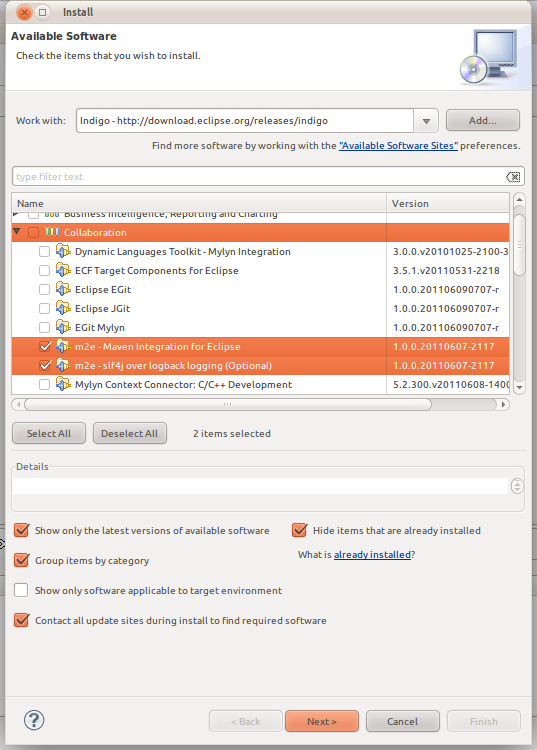
Pilih Workwith : Indigo, setelah itu pilih Collaboration -> e2e, untuk menginstall Maven Plugin. Klik Next untuk melanjutkan instalasi, setelah itu ikuti tahapan selanjutnya sampai proses instalasi berjalan.
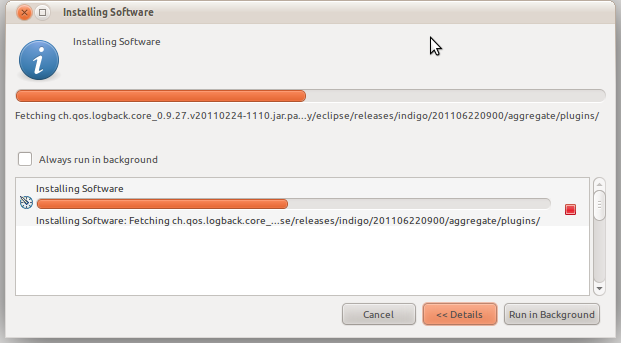
3. Menunggu itu Membosankan
Tunggu sampai proses instalasi selesai. :
Selamat mencoba
1. Buka Eclipse IDE Java EE
Pertama buka dulu Eclipse IDE Java EE. Jika belum punya silahkan download di website Eclipse http://www.eclipse.org/downloads/.2. Install Maven Integration
Untuk menginstall Maven Plugin, Anda dapat menggunakan menu Help -> Install New Software. Setelah itu akan keluar dialog seperti pada gambar dibawah ini :Pilih Workwith : Indigo, setelah itu pilih Collaboration -> e2e, untuk menginstall Maven Plugin. Klik Next untuk melanjutkan instalasi, setelah itu ikuti tahapan selanjutnya sampai proses instalasi berjalan.
3. Menunggu itu Membosankan
Tunggu sampai proses instalasi selesai. :4. Restart Eclipse
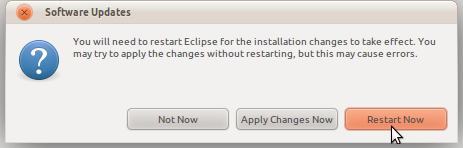
Setelah proses instalasi selesai, maka Eclipse akan meminta untuk melakukan restart.5. Selesai
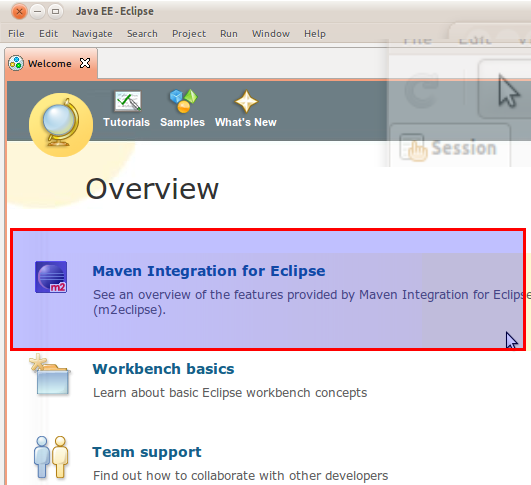
Setelah melakukan restart, sekarang Maven Plugin telah terinstall di EclipseSelamat mencoba
Subscribe to:
Comments (Atom)