Other criteria:
Logon groups according to SAP application / module: Separate logon groups can be setup for applications/modules such as HR, FI/CO, SD, MM etc. It means HR module users will be restricted to logon to identified instances, similarly other module users are allowed to login to their respective identified instances. The advantages of this method, is only the programs of the respective module are loaded into the program buffer of the particular instances of that logon group. Due to this, program buffer requires less memory and this helps to avoid buffer displacements thus improving system performance.
Logon groups according to language, country or company division:
If your SAP system is operating across multiple countries or languages, in that case it is good idea to create logon groups specific to a country or language. By this way the data and text related to specific country or language will be loaded into the buffers of the respective instances.
This minimizes buffer displacements and improves system performance. Also less memory is required for the table buffer.
Logon groups for certain user groups:
i) We can setup separate logon groups for some department like sales whose work is performance critical. For that logon groups we assign instances which operates with high level of performance (e.g: high speed processors, less users per server, no background or update workprocesses configured or a dedicated network etc)
ii) Some department users may take time-consuming reports in dialog mode. For these type of users, you may have to create separate logon group and assign an sap instance where profile parameter rdisp/max_wprun_time is set to very high
In this way we can separate performance critical/resource intensive applications from others.
Logon groups for the SAP Web Dispatcher:
For direct ABAP web service requests, we can setup logon groups that the SAP Web Dispatcher can use. If logon groups are not configured for web dispatcher, the load is distributed to all ABAP instances on which ICM is configured. Also, based on URLs we can distribute certain group of requests to dedicated logon groups.
Logon groups for ALE/RFC:
Asynchronous RFCs are used to process in parallel. However if the parallel processes are not limited properly, they can occupy all the available processes which impacts dialog users and can bring down the application. So, it is good idea to create separate logon groups for incoming RFC calls so that RFCs are kept separate from workprocesses of online users and thus avoids impact to dialog users.
Guide lines:
After assigning instances to logon groups
i) We need to verify whether the instances of logon groups are evenly distributed or not.
ii) If an instance hangs or temporarily got disconnected, you should be able to redistribute the users
So, you need to setup at least 2 sap instances for each logon group.
iii) Setting up logon groups involves extra administration and monitoring. So, unnecessarily large number of logon groups shouldn’t be setup
How to setup logon groups?
SMLG transaction code is used for creating logon groups.
Logon to SAP system and goto SMLG transaction as shown below:
In the above example there are 2 instances (00 and 09) in this SAP system. These are not yet assigned to any logon group.
We can create a new logon group by clicking on highlighted create icon on the above screen. It results in below screen.
In the above screen, either select logon group from dropdown or provide its name if you are newly creating. After that assign instance for that logon group and click on copy to save the assignment.
In this example iam creating two logon groups hr and fico and assigning instances 00 and 09 respectively. Please find below screenshots which explains the same.
Repeat the same step and create logon group fico and assign instance 09 for it as shown above.
After doing this, you can see following logon groups in SMLG
Once you are done with logon group setup, please log off from SAP system and goto SAPGUI of the respective SAP system.
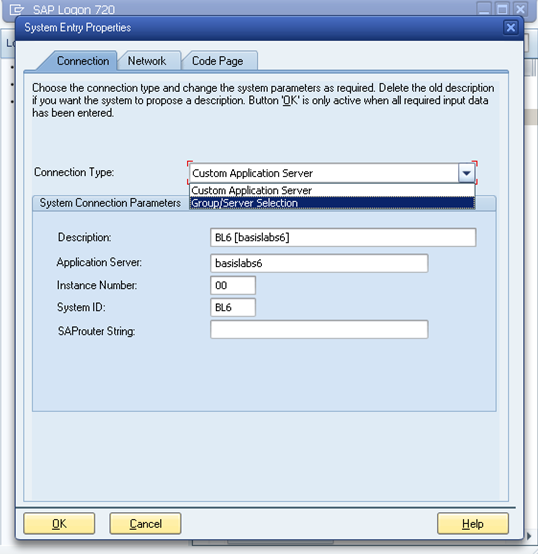
Click on properties of the respective GUI entry and goto to connection tab as shown below.
Please select Group/Server selection option from the drop down of Connection Type as shown above and maintain description and system id of the instance as shown above.
Now, you should be able to view the newly created logon groups as shown in below figure:
Also, please note you are able to view logon group SPACE also which gets created by default
Now, you can configure any desired logon group to the users as shown below:
For example in the above screen fico group is assigned to the end users in his GUI so that now onwards, he will login into instance number 09 only.
How to delete logon group or assignment?
If you no longer require any logon group, you can delete by proceeding as shown below:
i)Goto SMLG transaction
ii) Select the respective row and click on delete assignment which deletes the assignment of an instance to a logon group (highlighted in green color in below screen)
Click on delete icon above which confirms deletion of assignment
iii)If you wish to delete logon group itself, then select the respective logon group and click on “delete group” in the above screen highlighted in red color (please refer screen 1 of point ii above). This deletes the logon group itself and removes all assignments related to this group.
How to check logon load distribution in SAP?
Goto transaction code SMLG as shown below and click on highlighted icon below to view the load distribution across instances
Alternatively, you can view this by navigating to Goto -> Load Distribution or by pressing F5 key in the above screen